
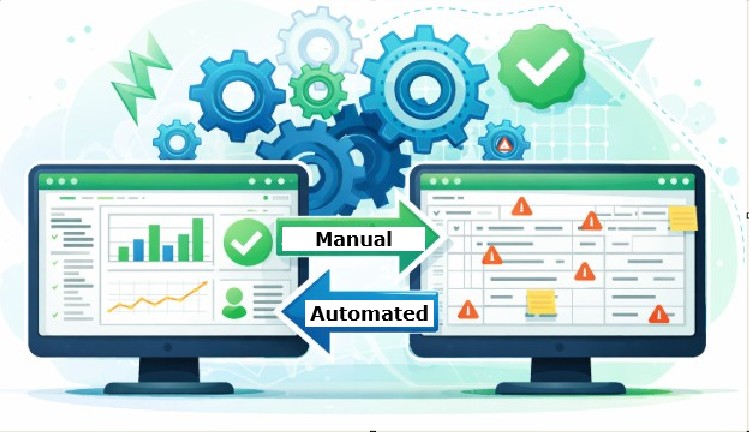
Automate Excel tasks
If you’re still performing repetitive tasks in Excel manually, you’re likely wasting hours every week without realizing it. Tasks like formatting, data cleanup, report generation, and copying data between sheets can all be streamlined—or fully automated. If you Automate Excel Tasks (particularly tedious ones) you can improve productivity and staff morale
The good news? With the right approach, you can transform your workflow and let Excel do the heavy lifting for you.
Why Manual Excel Work Is Costing You Time
Manual processes in Excel may seem simple, but they quickly add up:
- Repetitive formatting of reports
- Manually copying and pasting data
- Cleaning and organizing datasets
- Running the same calculations over and over
Each of these tasks might take only a few minutes—but over a week, that can turn into hours of lost productivity. What's more, tedious tasks bore employees and negaqtively impact satisfaction. Happy workers do better work.
Common Tasks You Can easily Should Automate in Excel
Here are some of the most common tasks you can automate in Excel:
- Data Entry: Eliminate manual input with forms or automated imports
- Formatting: Apply consistent formatting with a single click
- Reporting: Generate reports automatically from raw data
- Data Cleaning: Remove duplicates, fix formatting, and standardize entries
How Excel VBA Can Help
Excel’s built-in automation tool, VBA (Visual Basic for Applications), allows you to automate nearly any repetitive task.
With VBA, you can:
- Create custom macros to automate workflows
- Build buttons that trigger complex tasks
- Automatically process and analyze data
- Eliminate repetitive manual steps entirely
Once set up, VBA solutions can run in seconds—tasks that used to take you 30 minutes can now be completed instantly.
Simple Example: Automating a Repetitive Task
Imagine you format the same report every day. Instead of doing it manually:
- Record a macro once
- Or write a simple VBA script
- Run it with a single click
This alone can save hours each week and eliminate human error.
Benefits of Automation
- Save Time: Focus on higher-value work
- Increase Accuracy: Reduce human error
- Improve Efficiency: Work faster and smarter
- Reduce Frustration: No more repetitive clicking and copying
Take the Next Step
If you're ready to stop wasting time on manual Excel tasks, automation is the solution. Whether through built-in tools or custom VBA solutions, you can dramatically improve your workflow.
Start small, automate one task at a time—and build from there.
Need help automating your Excel processes? That’s exactly what I do—helping you turn slow, manual spreadsheets into efficient, automated systems.
👉 Take back your time and let Excel work for you instead of against you.
If you enjoyed this post, you might also like to read
- 5 Signs Your Excel Process Is Wasting Time (And How to Fix It)
- “If Your Slow Excel File Crashes, Freezes, and Takes Forever—Read This” .
Automate Excel Task Reference Material
To take automation further, you can explore Microsoft’s official guidance on VBA, which allows you to automate repetitive tasks and build powerful custom solutions: Microsoft Excel VBA Documentation