
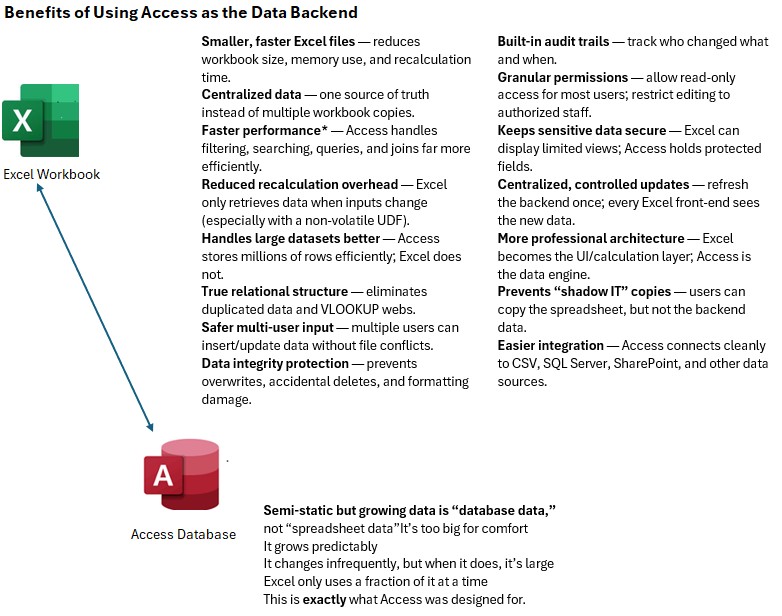
Introduction
Using Access as a backend transforms Excel from a bloated storage container into a fast, lightweight calculation and reporting tool. Over time, even the cleanest spreadsheets suffer from workbook creep—the slow, steady expansion of data, formulas, and hidden “temporary fixes” that turn a perfectly good model built two years ago into today’s slow, oversized, and fragile workbook.
Moving large or semi-static data into Access stops that creep cold. Access centralizes and secures your data, handles large and growing datasets efficiently, enforces relational structure, and supports multi-user updates without corruption. Excel then pulls in only the slices it actually needs—especially when paired with a non-volatile UDF (which does not recalculate unless one of its inputs changes).
This will cause smaller files, faster recalculation, and dramatically improved stability. Sensitive data stays protected, audit trails become possible, and “shadow IT” versions disappear. The result is: a cleaner, more scalable, more professional architecture that lets Excel do what it does best—without dragging years of baggage along with it. The good news is that implementation is relatively easy and can happen in stages.
In this article, I will provide you with a download containing a working Excel front end with UDFs connecting to static data in an Access database. Note all the UDF code will be “over annotated” so you can duplicate my work.
You know you’ve outgrown Excel when…
1. Your Workbook Stops Being a Workbook
You started with one tab. Now you’ve got:
- A “Data” sheet,
- A “Data2” sheet,
- Five “Archive” tabs,
- Twenty hidden sheets,
- And a few unknown sheets left behind by developers who vanished years ago.
Once you’re explaining your workbook like it’s the plot of a time-travel movie, it’s time to rethink things.
2. Performance Goes Off a Cliff
- Your file opens slowly.
- Saving takes forever.
- Recalculation hangs.
- Your screen freezes every time you add a row.
This isn’t because Excel performs poorly—it happens because you use it for tasks it was never designed to handle: storing thousands of records, maintaining history, tracking data relationships, and powering user forms.
3. You’re Storing Structured or Historical Data
Examples:
- Tickets
- Orders
- Inventory transactions
- Logs
- Form submissions
- Audit trails
- Anything where a single entity has multiple related records
Excel can display this data beautifully, but it wasn’t built to store it efficiently or safely. That’s Access’s whole job.
4. You Have Multiple Users Touching the File
Let’s be honest—Excel is a terrible multi-user system.
Shared spreadsheets invite:
- Conflicts
- Overwrites
- Lost formulas
- Corruption
- Versioning disasters
- People working in different copies because “someone else has it open”
Access, however, was literally built for concurrent data entry.
Access is the quiet, boring, unglamorous hero of the Microsoft Office ecosystem. And that’s why it’s perfect.
Here’s what you gain the minute you offload your data to Access:
1. A Real Database Engine
Excel stores data like a giant notepad. Access stores data like a relational database:
- Normalized tables
- Keys and relationships
- Consistency rules
- Referential integrity
2. Lightning-Fast Lookups
The heaviest part of most bloated workbooks isn’t VBA—it’s formulas. Your VLOOKUP/HLOOKUP/XLOOKUP/INDEX/MATCH spaghetti becomes unnecessary once you can query a table with:
SELECT * FROM tblEquipment WHERE Serial = 'ABC123'3. Centralized, Shared Data Five users on one Access database? Not a problem. Five users on one Excel sheet?
That’s a support ticket waiting to happen.
4. Excel Becomes the Front-End, Not the Warehouse
Let Excel do what it’s best at:
- Dashboards
- Reports
- PivotTables
- Charting
- User-friendly forms
- Lightweight interfaces
- Tables
- Relationships
- History
- Lookup lists
- PivotTables
- Reporting
- Data-entry forms
- Command buttons that run VBA
2. Access for History, Excel for Current Work Never keep history in Excel. Ever. Dump it into Access. Query it back when needed.
3. Access for One-to-Many Relationships Excel hates parent/child relationships. Access is built for them. Projects → Tasks Equipment → Check-outs Clients → Orders Chapters → Notes
4. Access as a Cache -Demonstrated in the following Post:
Excel VBA UDF Optimization: Using Dictionary Caching for Speed
This is a trick most people never consider: Use Access as a lightweight cache so Excel doesn’t repeatedly:
- Pull from APIs
- Load CSVs
- Query other workbooks
- Recalculate huge ranges
A working example
The attached worksheet and access database contains the example Trident Pharmaceuticals Inventory Workbook, which uses UDF (User-Defined Functions) to pull data as necessary from Access. Gone are the tedious links and VLOOKUPs.
1. Columns with the blue headers are all UDF (User-defined functions) and include:
- =GetMaterialName(A6)
- =GetDateAcquired(A6, C6)
- =GetAvailable(A6,C6)
- =GetTotalAvailable(A6)
- =GetUnitPrice(A6,C6)
*for row 6 of course
The UDFs get the data from 2 Tables (tb_Material and tbl_Batch_detail) in the Access Database Trident _Pharmaceuticals.accdb
2. The UDF assumes the database and workbook are in the same directory
3. Be sure and index the foreign keys or composite key [Material ID and Batch fields in the example]
4. The VBE (visual basic editor is unlocked and the code is highly annotated code so can understand it step by step.) you can see an example of the GetMaterialName UDF below:
5. The code requires a reference Please see the UDF it is all detailed there. Depending on your Office version, it will appear as:
Microsoft Office 16.0 Access Database Engine Object Library, or
Microsoft DAO 3.6 Object Library, or
Microsoft DAO 12.0 Object Library.
You can download an example of an workbook powered by Excel UDFs. Here ——->

'==========================================================
' Developer: Ray Mills
' Contact Phone:       484 574 3190
' Contact Email        raymills.developer@gmail.com
' UDF: GetMaterialName
'
'  One library reference is required for this UDF as written.
'  Microsoft Office 16.0 Access Database Engine Object Library, or
'  Microsoft DAO 3.6 Object Library, or
'  Microsoft DAO 12.0 Object Library

'  Purpose:
'      Return the TEXT field "Material_Name" from Access table
'      tbl_Material given the numeric Material_ID.
'
'  Access Table Structure:
'      tbl_Material
'          Material_ID   (Number - Long Integer)
'          Material_Name (Short Text - Access text field)
'
'  Database:
'      Trident_Pharmaceuticals.accdb
'      Assumed to be in the SAME FOLDER as the workbook.
'
'  Notes:
'      - Uses DAO for direct Access table reading.
'      - Material_Name is returned as TEXT.
'      - Returns #N/A if ID is not found.
'      - Returns #VALUE on database/query errors.
'
'==========================================================

Function GetMaterialName(Material_ID As Long) As Variant


    On Error GoTo ErrHandler ErrHandler

    Static db As DAO.Database         ' Cached database reference
    Dim rs As DAO.Recordset           ' For running the query
    Dim sql As String                 ' SQL query
    Dim dbPath As String              ' Full database path

    '------------------------------------------------------
    ' 1. Build full path to the Access database
    '------------------------------------------------------
    dbPath = ThisWorkbook.Path & "\Trident_Pharmaceuticals.accdb"

    '------------------------------------------------------
    ' 2. Open the database **once only**
    '    Using Static means Excel won't re-open the DB for
    '    every cell recalculation — huge performance benefit.
    '------------------------------------------------------
    If db Is Nothing Then
        Set db = DBEngine.OpenDatabase(dbPath)
    End If

    '------------------------------------------------------
    ' 3. SQL query
    '    Material_ID is numeric so no quotes.
    '    Material_Name is TEXT but we are SELECTing it,
    '    not filtering by it.
    '------------------------------------------------------
    sql = "SELECT Material_Name FROM tbl__Material " & _
          "WHERE Material_ID = " & Material_ID & ";"

    '------------------------------------------------------
    ' 4. Execute the query
    '------------------------------------------------------
    Set rs = db.OpenRecordset(sql, dbOpenSnapshot)

    '------------------------------------------------------
    ' 5. If a matching record exists, return the TEXT value
    '------------------------------------------------------
   If Not (rs.EOF And rs.BOF) Then
        GetMaterialName = rs!Material_Name   ' <-- TEXT FIELD
    Else
        GetMaterialName = CVErr(xlErrNA)     ' ID not found
    End If

Cleanup:
     On Error Resume Next
    If Not rs Is  Nothing Then rs.Close
     Set rs =  Nothing
    Exit Function

ErrHandler:
    ' Database missing, table missing, SQL error, etc.
    GetMaterialName = CVErr(xlErrValue)
    Resume Cleanup

 End Function